The screen toolkit
White Screen Online. Start instantly.
Open a bright white screen, then explore useful colors, display checks, focus lights, and playful fullscreen experiences.
Quick start
14 color screens
Popular toolsOpen the tools people use most, with no setup required.
Explore 40+ tools
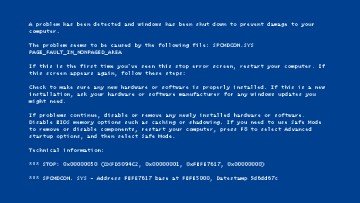
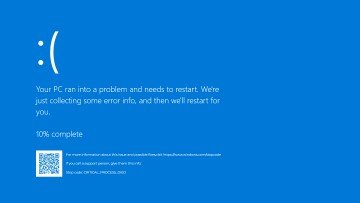 Fake Windows 10 Blue ScreenA modern blue crash-screen scene with live progress and responsive typography.
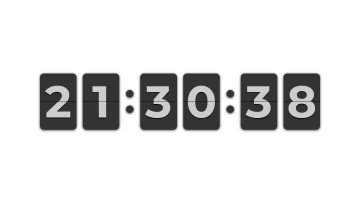 Flip Clock ScreensaverAn original fullscreen flip clock with timezone, format, seconds, date, and display-drift controls.
 Monitor TestA complete guided sequence for pixels, levels, gradients, sharpness, geometry, and motion.
secure-session.tsimport { createHash } from 'node:crypto';const channels = new Map<number, Session>();function checksum(payload: Uint8Array) { return createHash('sha256').update(payload);}> session ready — type to continue_
Hacker Typer ScreenType anything to reveal original fictional code in terminal, security-lab, or sci-fi themes.
Monitor TestA complete guided sequence for pixels, levels, gradients, sharpness, geometry, and motion.
secure-session.tsimport { createHash } from 'node:crypto';const channels = new Map<number, Session>();function checksum(payload: Uint8Array) { return createHash('sha256').update(payload);}> session ready — type to continue_
Hacker Typer ScreenType anything to reveal original fictional code in terminal, security-lab, or sci-fi themes.
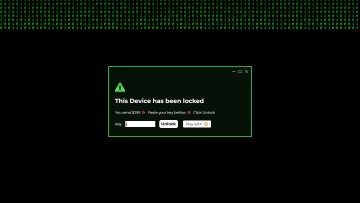
 Broken Screen PrankA responsive broken-display simulation with distinct glass, LCD, whiteout, corner-impact, and mobile damage styles.
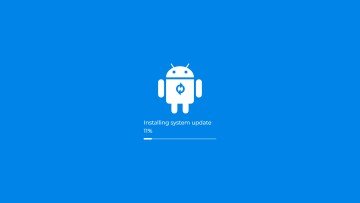
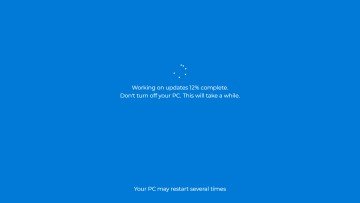 Windows 10 Fake UpdateA clean blue fictional update simulator with adjustable phases and progress.
Display diagnosticsScreen tests
Focused patterns for pixels, levels, uniformity, and OLED gray inspection.
View all →
Create and focusUtilities & generators
Make a clean image, build a gradient, light a call, or generate ambient noise.
View all →
Ambient experiencesInteractive screensavers
Motion, clocks, patterns, and calm displays with pause and reduced-motion support.
View all →
Entertainment · clearly disclosedSafe prank simulators
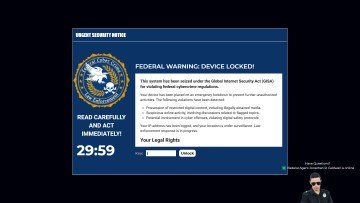
Detailed browser simulations with responsive artwork, natural Escape-key exit, and no system access.
View all →
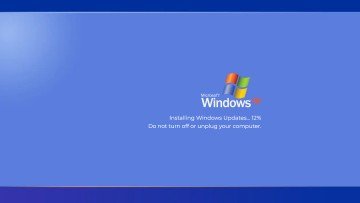
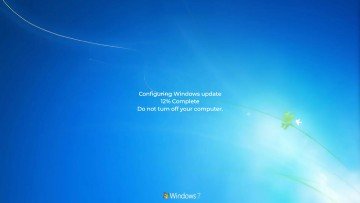
Independent simulationsFake update simulators
Seven OS-inspired experiences combining crisp visuals, live progress, and safe exits.
View all →
How to use White ScreenA careful three-step workflow
Use the visible controls first, enter fullscreen deliberately, and leave with the normal browser exit.
- 1
Choose Pure White, then set a comfortable luminance and neutral, warm, or cool tone.
- 2
Review the preview and select Fullscreen only when the display is ready for the intended task.
- 3
Press Escape to leave fullscreen, then Reset or download the selected color from the normal page view.
Methodology & privacyUseful tools with clear limits.
Every route has one clear job, independently written behavior, visible limitations, tested controls, and a documented asset trail.
Read our methodology
- No tool data collection
- No tracking cookies required
- Clear safety and attribution
01
Reviewed guide
How to Recognize a Fake Update or Prank Screen
Separate a browser simulation from trusted system settings, respond safely to coercive alerts, and understand the safeguards required for ethical prank tools.
02
Reviewed guide
How a Bouncing Screensaver Calculates Collisions
Understand elapsed-time motion, axis-aligned collision bounds, overshoot correction, corner-hit detection, resizing, and high-refresh-rate behavior.
03
Reviewed guide
How to Use a Monitor as Video-Call Lighting
Improve a call with careful screen-light placement, moderate brightness, warm/neutral/cool comparison, split light, exposure checks, and no camera access.
04
Reviewed guide
Safe Monitor Cleaning: A Manufacturer-First Method
A conservative process for removing dust and smudges without spraying the panel, flooding edges, using abrasive material, or ignoring special coatings.
Quick answers
Before you open a tool
Are these real interactive tools?
Yes. Patterns, animations, sound, exports, calculations, and simulation controls run directly in your browser.
Does the site upload my files or settings?
No. Supported local images are decoded in the current tab and temporary browser URLs are cleaned up when reset or closed.
Are the system simulations official?
No. They are independent browser simulations and are not endorsed by an operating-system vendor.
Do the tools work on phones and tablets?
Yes. Controls adapt to touch and smaller screens while keeping fullscreen and exit actions visible.
How can I use a bright white screen for video calls or display checks?
Open the White Screen tool to create a bright white screen, then adjust brightness or tone before entering fullscreen. A bright white screen can provide simple front lighting or a clean field for visual inspection; it is not a calibrated light source. Open White Screen
What should I look for during a dead pixel screen test?
A dead pixel screen test cycles through solid colors so isolated pixels are easier to notice. Run the test in fullscreen, clean the panel first, and compare several colors before deciding whether a mark is a pixel issue. Open the pixel test
How does a monitor uniformity test reveal uneven brightness?
A monitor uniformity test shows consistent gray and solid fields that make broad brightness or tint changes easier to compare. Run it at several levels and keep room lighting and viewing position stable for a more repeatable observation. Open the uniformity test
What does AMOLED grey uniformity show on an OLED display?
AMOLED grey uniformity describes how evenly a panel renders dark gray across the screen. Check several near-black levels in a dim room, but treat banding or tint as a visual observation rather than a hardware diagnosis. Open the OLED gray test
Which ScreenOrbit tool should I choose first?
Start with the task. Use White Screen for a bright field, Dead Pixel Test for a fixed point, Monitor Test for a full sequence, Video Call Light for fill light, and the collection links for motion or simulations. Browse all tools
How do I leave fullscreen or reset a tool?
Press Escape to leave fullscreen. Use Reset in the normal page view to restore default controls and clear the saved state for the current tool. Read how the tools work