
Browser Screensavers
Original clocks, motion, quotes, broadcast-inspired patterns, and procedural effects with visible controls.


No tools match that search. Try a shorter term or choose All.
Six different kinds of ambient screen
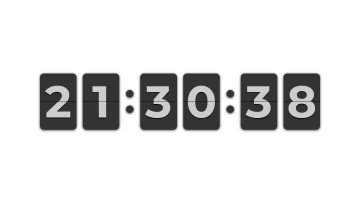
The DVD Screensaver animates a crisp badge and adds optional custom text and a local image mode. The Flip Clock reads time through the browser’s internationalization API and can show seconds, a date, or a selected timezone. Digital Rain draws independent glyph streams rather than using franchise artwork.
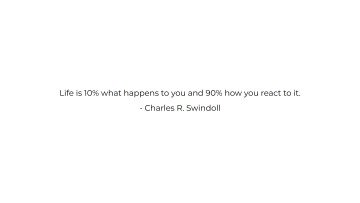
For quieter output, the Motivational Quote Screensaver rotates project-authored or verified public-domain quotations. The No Signal Screen offers original color bars, grayscale, grid, and restrained jitter. Static Screen transforms still-noise pixels locally and can pause or save a generated variation.
Designed as browser experiences, not device protection
These pages do not replace an operating system’s lock screen, screen timeout, or power-saving controls. A moving image is not a guarantee against image retention or burn-in, and leaving a display active consumes power. Use the device’s own sleep settings when the goal is energy saving or unattended security.
Animation begins only after an appropriate user action where motion is intense. Pause and Reset remain available in the normal page view; background tabs stop drawing; and reduced-motion preferences suppress or simplify movement. Fullscreen never starts automatically, and the browser’s Escape behavior is never blocked.
Choose settings that suit the display
Start at a moderate speed and size, especially on a large or bright display. Very small fast elements can be tiring, while high Canvas resolution can waste mobile battery and GPU memory. The renderer caps effective pixel density on demanding scenes and recalculates its bounds after orientation or viewport changes.
If you use a custom image in the bouncing tool, the file is decoded locally and never uploaded. Only PNG, JPEG, and WebP files within the stated size and dimension limits are accepted. Object URLs are released on reset. Read how the collision calculation works for a transparent explanation of timing and corner-hit detection.
Compare the six experiences
| Tool | Motion level | Useful control |
|---|---|---|
| Bouncing badge | Continuous directional motion | Speed, size, collision color, local image |
| Flip clock | Small periodic transitions | Timezone, 12/24 hour, seconds, date |
| Digital rain | Continuous ambient motion | Glyph set, density, trail, color |
| Quotes | Occasional transition | Custom text, interval, alignment |
| No signal | Static unless jitter is enabled | Bars, grayscale, grid, still download |
| Static | Intense random motion when started | Monochrome/color, grain, pause |
Long-running browser etiquette
Close or pause a screensaver when leaving a battery-powered device, when heat rises, or when the display is no longer being watched. Browser Wake Lock is a convenience rather than a guarantee; it can be refused or released, and it is reacquired only when the page becomes visible and the user has enabled it. Never rely on a browser screensaver for authentication or privacy.
For recording or streaming, verify that custom text and images do not contain private information and that you hold the necessary rights. Downloaded stills include the generated scene, not a license to third-party material you supplied.
Use this page for one clear task
Select an ambient browser scene by motion level, control set, and intended use. Creators, streamers, event teams, teachers, and home users use this collection for clocks, motion, text, and procedural scenes. Write down the result you need before you follow a link or change a setting. A narrow goal saves time and keeps the final decision tied to evidence.
Read the full page once before acting when the task involves a display test, cleaning step, simulation, file right, privacy request, or support report. Then return to the exact section needed for the work. Keep the stated limits visible while you decide the next step. This route focuses on: Select an ambient browser scene by motion level, control set, and intended use.
Prepare a stable starting point
Review pause and Escape first. Choose a moderate brightness, speed, and size before fullscreen. Record the starting state before you change a control, move a device, submit a form, or rely on a policy statement. Use current source material and the current page version for any formal review.
Keep one issue per session or message. Separate a visual symptom from a hardware claim. Separate a browser simulation from a system event. Separate a generated file from third-party material placed inside the file. These boundaries make the evidence easier to assess. The main route risk is: A long bright session uses power and does not guarantee protection from image retention.
Follow a practical four-part process
- Define the goal. Select an ambient browser scene by motion level, control set, and intended use. Stop if the task changes into a different problem.
- Capture the baseline. Record the selected mode, speed, color, interval, and whether reduced motion changed the scene. Use exact values and names where they exist.
- Check the main risk. A long bright session uses power and does not guarantee protection from image retention. Correct the setup before repeating the step.
- Choose the next action. Read the bouncing collision guide for timing details or open Static Screen for a still-noise frame. Keep the original record for comparison.
Build evidence another person understands
Record the selected mode, speed, color, interval, and whether reduced motion changed the scene. Add the date and the page URL. Remove passwords, addresses, serial numbers, payment data, private messages, and confidential logs before sharing a screenshot or report. A short written sequence often carries more value than one close photograph.
For a comparison, repeat the same order and keep every unrelated variable stable. For a policy or rights question, quote the exact file or clause in your own words and link the source. For a bug, include expected behavior, observed behavior, and the smallest reliable reproduction path. This route asks you to record: Record the selected mode, speed, color, interval, and whether reduced motion changed the scene.
Avoid weak evidence and unclear claims
- A long bright session uses power and does not guarantee protection from image retention.
- A browser screensaver does not replace a lock screen, sleep timer, or panel-care feature.
- Avoid several setting changes between the baseline and the result. Preparation for this route: Review pause and Escape first. Choose a moderate brightness, speed, and size before fullscreen.
- Avoid a private or model-specific claim without a current primary source. The page limit is: A browser screensaver does not replace a lock screen, sleep timer, or panel-care feature.
- Avoid private data in public screenshots, links, examples, and support messages. The useful evidence is: Record the selected mode, speed, color, interval, and whether reduced motion changed the scene.
- Avoid treating a search result, camera image, or forum comment as final proof. The main risk is: A long bright session uses power and does not guarantee protection from image retention.
Move to the next useful action
Read the bouncing collision guide for timing details or open Static Screen for a still-noise frame. Keep the baseline and the page limit beside the result. Contact the relevant maker, seller, platform, specialist, rights holder, or ScreenOrbit editor when the decision falls outside the page scope.
Questions about Browser Screensavers
What is the main purpose of Browser Screensavers?
Select an ambient browser scene by motion level, control set, and intended use. The page keeps the task narrow so you reach a useful next action without mixing unrelated intent.
Who should use Browser Screensavers?
Creators, streamers, event teams, teachers, and home users use this collection for clocks, motion, text, and procedural scenes. Start with the stated task and use the linked route or policy for the next decision.
What should you prepare before following Browser Screensavers?
Review pause and Escape first. Choose a moderate brightness, speed, and size before fullscreen. Keep the starting state stable and write down any change you make during the process.
What information should you record for Browser Screensavers?
Record the selected mode, speed, color, interval, and whether reduced motion changed the scene. Specific details help another person repeat the same check or review the same request.
What common error weakens the Browser Screensavers result?
A long bright session uses power and does not guarantee protection from image retention. Pause when the context changes and restart from a known state rather than guessing.
What does Browser Screensavers exclude?
A browser screensaver does not replace a lock screen, sleep timer, or panel-care feature. Use the stated limit when deciding whether you need a maker, specialist, platform, or legal contact.
Does ScreenOrbit store settings from Browser Screensavers?
Interactive tool settings stay in local browser storage where supported. Supported files stay in the tab. A contact message follows the separate contact and privacy process. Page scope: Select an ambient browser scene by motion level, control set, and intended use.
Does Browser Screensavers work on phones and computers?
The written steps work across screen sizes. Browser features differ by device. Fullscreen, downloads, Wake Lock, file access, and audio depend on current browser support. Preparation: Review pause and Escape first. Choose a moderate brightness, speed, and size before fullscreen.
How often should you repeat the Browser Screensavers process?
Repeat after a meaningful change such as a new device, display preset, browser, room condition, source, policy revision, or software release. Keep stable conditions for direct comparisons. Record: Record the selected mode, speed, color, interval, and whether reduced motion changed the scene.
What should you do after Browser Screensavers?
Read the bouncing collision guide for timing details or open Static Screen for a still-noise frame. Follow the closest linked route and keep the original goal, evidence, and limits in view.