
Motivational Quote Screensaver
Choose a curated quote or write a short local message, then adjust type, alignment, color, timing, and background.
SCREENUP
Related tools


Practical uses for Motivational Quote Screensaver
- Display a quiet prompt during a break.
- Create a simple waiting screen with your own message.
- Download the current composition as an image.
A careful three-step workflow
- 1
Choose curated or custom-text mode.
- 2
Set readable type, colors, and change interval.
- 3
Start fullscreen and pause whenever you want one message to remain.
Interpret the result in context
- Custom text stays in local browser state.
- Attribution is shown for every non-project quotation.
- State for Motivational Quote Screensaver is processed locally and resets from the normal page view.
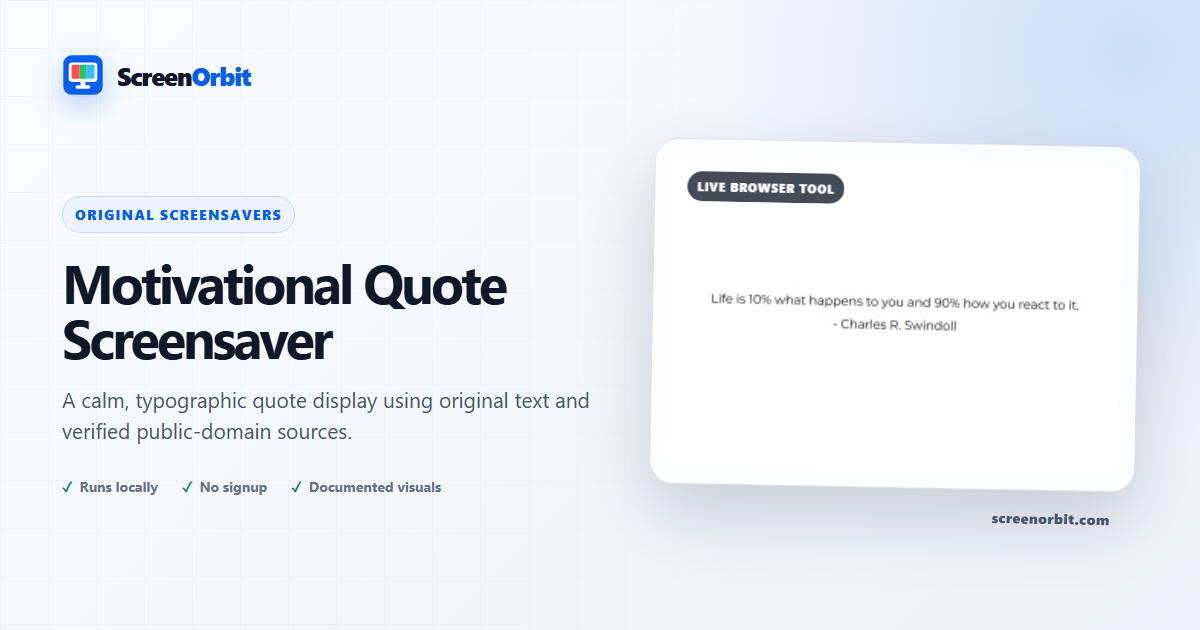
A calm typographic display without copied quote collections
This screensaver presents a small reviewed collection of project-authored text and verified public-domain quotations with visible attribution. You can also enter a short personal message. Custom text stays in local browser state and is not submitted to WordPress, an analytics service, or a third-party quotation API.
Create a readable composition
- Choose Curated for attributed material or Custom Text for your own words.
- Use a strong foreground/background contrast and a type size suited to the viewing distance.
- Select center or edge alignment according to the room and screen placement.
- Set a comfortable change interval. Pause when one message should remain visible.
- Enter fullscreen deliberately, or download the current composition as a still image.
Attribution and editorial standard
Popular quotation sites frequently repeat uncertain wording or misattribute living authors. ScreenOrbit does not import those feeds. Non-project quotations are used only after a public-domain review and are recorded in the asset/provenance register. If provenance is uncertain, the text is not shipped. A custom message is presented as user-supplied and is never added to the public catalog.
Motion, persistence, and display care
Transitions are subtle, pause when the tab is hidden, and are removed when reduced motion is requested. Wake Lock is optional. This browser page is not an installed system screensaver and cannot override device sleep policy. Long-running, static, high-contrast content may be unsuitable for some displays; vary content, use reasonable brightness, and follow manufacturer guidance.
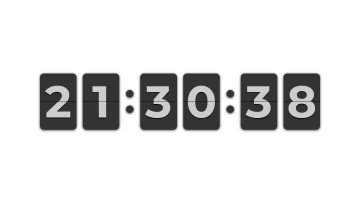
Use the Flip Clock when the primary job is timekeeping, the Beige Screen for a motion-free warm surface, or the Bouncing Screensaver for more movement. All modes remain available without signup.
Plan a useful session with Motivational Quote Screensaver
Motivational Quote Screensaver works best when you start with one question. Decide what you need to view, compare, create, record, or demonstrate. Keep the first run at the default state. Change one control after you understand the starting result. This approach gives you a clear baseline and a useful reason for every adjustment.
Choose a curated quote or write a short local message, then adjust type, alignment, color, timing, and background. Use the normal page view to prepare the settings. Enter fullscreen only after you review the exit control. Write down the mode and key values when you need to repeat the result on another device.
Choose controls by outcome
The available modes include curated, custom text, focus, minimal. The control set includes fullscreen, animation, keyboard, wake lock, quick download, reset. Start with the option closest to your task. Avoid changing every value at once. A single change gives you a direct before-and-after comparison and makes a saved result easier to explain.
- Display a quiet prompt during a break. Set a clear finish point before you begin.
- Create a simple waiting screen with your own message. Set a clear finish point before you begin.
- Download the current composition as an image. Set a clear finish point before you begin.
Run a repeatable workflow
- Stage 1. Choose curated or custom-text mode. Record the starting environment and state.
- Stage 2. Set readable type, colors, and change interval. Keep the first comparison short and controlled.
- Stage 3. Start fullscreen and pause whenever you want one message to remain. Reset the page when the session ends.
For a device comparison, use the same browser family, viewport, room light, physical brightness, and viewing distance where practical. Run the same order on both devices. Change one environmental factor only after the matched pass is complete. Keep this route focused on this use: Display a quiet prompt during a break.
Keep a useful record
A useful record names the page, mode, control values, browser, device, viewport, date, and viewing condition. For a visual observation, describe the location and the fields where the effect appears. For a generated asset, record dimensions, format, color values, and the downloaded file name. For a simulation, record the duration, custom text, disclosure, and exit method. The starting reference for this page is curated.
- Custom text stays in local browser state.
- Attribution is shown for every non-project quotation.
Avoid common setup errors
- For this use, do not treat a browser view as a hardware measurement or system action: Display a quiet prompt during a break.
- Do not change several settings before you record the baseline. Begin with curated.
- Do not rely on a phone photograph as the only evidence. Keep this route limit in view: Custom text stays in local browser state.
- Do not leave route features active after the task ends. The main controls include fullscreen, animation, keyboard, wake lock.
- Do not add private data, credentials, payment details, or confidential text. Keep the second listed use in scope: Create a simple waiting screen with your own message.
Continue with the closest comparison
Open a related route when the first page reveals a new question. Keep the same environment and repeat only the part needed for comparison. The closest listed routes are Flip Clock Screensaver, DVD Screensaver, Beige Screen. Keep this final use in mind: Download the current composition as an image.
- Flip Clock Screensaver. An original fullscreen flip clock with timezone, format, seconds, date, and display-drift controls.
- DVD Screensaver. A precise bouncing badge with classic, custom text, and local-image modes.
- Beige Screen. A neutral warm beige display for soft backgrounds and comparison.
Recommended guides
Questions about Motivational Quote Screensaver
What does Motivational Quote Screensaver do?
Choose a curated quote or write a short local message, then adjust type, alignment, color, timing, and background. Display a quiet prompt during a break. Create a simple waiting screen with your own message.
Who gets the most value from this page?
Use this page when your task matches the listed purpose. Display a quiet prompt during a break. Create a simple waiting screen with your own message. Start with a clear goal and stop once the page answers that goal.
Which Motivational Quote Screensaver setting should you choose first?
Start with curated, custom text, focus, minimal. Keep the default state for the first pass. Change one control, review the result, then record the setting before another change.
What should you prepare before fullscreen?
Choose a moderate speed, size, and brightness. Review the pause and exit controls before fullscreen. Respect reduced-motion preferences. Choose curated or custom-text mode. Set readable type, colors, and change interval.
Does this page change hardware or system settings?
The browser experience does not replace a lock screen, sleep timer, security control, calibration process, or manufacturer panel-care feature. The curated mode and Reset affect local page state only.
How should you judge the result?
Judge motion by comfort, frame stability, and the intended recording or ambient use. Stop the scene when the display no longer needs to stay active. Custom text stays in local browser state. Attribution is shown for every non-project quotation.
Does the page upload files or settings?
No tool state is uploaded by ScreenOrbit. Supported local files stay in the current browser tab. Generated files are assembled in browser memory and download to your device. The starting mode is curated. The first use is: Display a quiet prompt during a break.
Which phones, tablets, and computers support the tool?
Current desktop and mobile browsers support the core page. Fullscreen, Wake Lock, downloads, audio, and local file access depend on browser and operating system support. The visible control set starts with fullscreen. The first use is: Display a quiet prompt during a break.
What mistakes reduce the value of the page?
Avoid leaving a bright animated page unattended. Long sessions consume power and do not guarantee protection from image retention. Keep the goal, settings, environment, and exit plan clear. The first listed use is: Display a quiet prompt during a break.
Which ScreenOrbit tool should you open after Motivational Quote Screensaver?
Continue with Flip Clock Screensaver, DVD Screensaver, Beige Screen. The related links preserve the same task area while giving you another field, pattern, or workflow for comparison.