
Fake Update Simulators
Seven independent update-style experiences with fictional progress, descriptive naming, and no system access.
No tools match that search. Try a shorter term or choose All.
What a fake update page actually does
These simulators run a timer in one browser tab and translate elapsed time into a fictional percentage and phase message. They do not read installed software, inspect files, install packages, change settings, restart the computer, or communicate with an operating-system vendor. Pause, restart, loop, and fullscreen controls affect only the page.
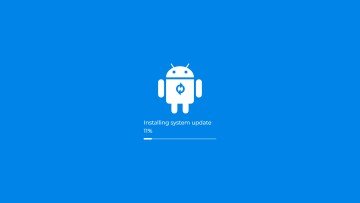
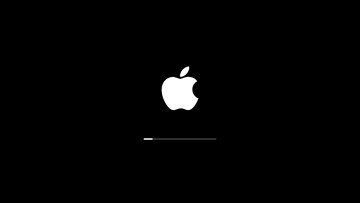
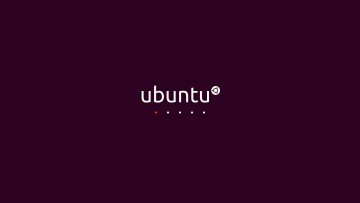
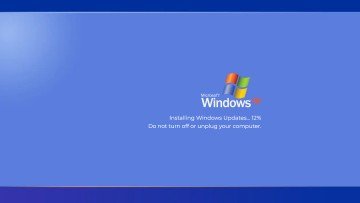
Each version has its own visual structure instead of being a recolored template. Live layers preserve editable status text, adjustable progress, spacing, phase changes, pause, restart, and loop behavior across the Android, macOS, Ubuntu, and four Windows-era routes.
Use descriptive names without implying affiliation
Operating-system names appear because they identify the broad style of simulation. Android is a trademark of Google LLC, macOS and Mac are trademarks of Apple Inc., Ubuntu is a trademark of Canonical Ltd., and Windows is a trademark of Microsoft Corporation. ScreenOrbit is independent and is not sponsored, approved, or provided by those organizations.
Vendor-style marks and status copy contain no actual device information and perform no system action. The normal page labeling and natural Escape-key exit distinguish the experience from genuine system software.
Consent and quick recognition matter
Do not place a fake update screen on a shared, workplace, school, medical, retail, or public device without authorization. Even a harmless browser page can interrupt someone or be mistaken for a genuine problem. Avoid extremely long durations and stop immediately if the viewer is concerned.
A genuine operating-system update normally appears through known system settings and does not depend on a random browser tab remaining open. If an unexpected page asks for credentials, payment, a support number, downloads, or remote-control access, close it and follow trusted security guidance. See How to Recognize a Fake Update or Prank Screen.
How the versions differ
| Style | Visual direction | Live behavior |
|---|---|---|
| Android-inspired | Bright blue with familiar installer artwork | Percentage and progress bar |
| macOS-inspired | Black with restrained startup artwork | Thin progress bar |
| Ubuntu-inspired | Aubergine with a centered mark | Sequenced loading dots |
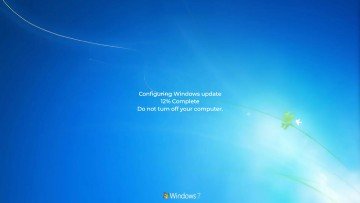
| XP/7-inspired | Clean-room period wallpapers | Spinner, percentage, and phases |
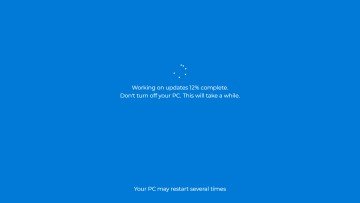
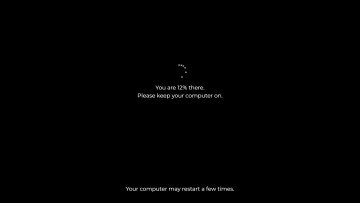
| 10/11-inspired | Blue or black centered layouts | Six-dot choreography, progress, and phases |
Designing a safe staged scene
Choose a short duration that suits a recording rather than an indefinite loop. Start from a plausible percentage, rehearse the exit, and avoid placing the page over unsaved work. If the device belongs to another person, get permission before opening fullscreen. A simulation should never be used as cover for accessing files or changing settings.
After the scene, leave fullscreen, stop the loop, reset local state, and close the tab. Nothing should remain installed. If a page does persist outside the browser, requests permission, or behaves differently from this description, treat it as an unrelated security concern and use trusted support.
Use this page for one clear task
Compare seven independent update-style scenes and choose the visual structure needed for a safe production. Video creators, teachers, interface researchers, and consent-based entertainment users use this collection. Write down the result you need before you follow a link or change a setting. A narrow goal saves time and keeps the final decision tied to evidence.
Read the full page once before acting when the task involves a display test, cleaning step, simulation, file right, privacy request, or support report. Then return to the exact section needed for the work. Keep the stated limits visible while you decide the next step. This route focuses on: Compare seven independent update-style scenes and choose the visual structure needed for a safe production.
Prepare a stable starting point
Confirm no real update is running. Save work, get permission, set a short duration, and rehearse Escape. Record the starting state before you change a control, move a device, submit a form, or rely on a policy statement. Use current source material and the current page version for any formal review.
Keep one issue per session or message. Separate a visual symptom from a hardware claim. Separate a browser simulation from a system event. Separate a generated file from third-party material placed inside the file. These boundaries make the evidence easier to assess. The main route risk is: Credentials, payment, remote access, and claims about real device status breach the page safety boundary.
Follow a practical four-part process
- Define the goal. Compare seven independent update-style scenes and choose the visual structure needed for a safe production. Stop if the task changes into a different problem.
- Capture the baseline. Record the selected style, starting percentage, duration, phase text, loop state, and exit result. Use exact values and names where they exist.
- Check the main risk. Credentials, payment, remote access, and claims about real device status breach the page safety boundary. Correct the setup before repeating the step.
- Choose the next action. Use the fake-screen recognition guide to compare browser cues with genuine system behavior. Keep the original record for comparison.
Build evidence another person understands
Record the selected style, starting percentage, duration, phase text, loop state, and exit result. Add the date and the page URL. Remove passwords, addresses, serial numbers, payment data, private messages, and confidential logs before sharing a screenshot or report. A short written sequence often carries more value than one close photograph.
For a comparison, repeat the same order and keep every unrelated variable stable. For a policy or rights question, quote the exact file or clause in your own words and link the source. For a bug, include expected behavior, observed behavior, and the smallest reliable reproduction path. This route asks you to record: Record the selected style, starting percentage, duration, phase text, loop state, and exit result.
Avoid weak evidence and unclear claims
- Credentials, payment, remote access, and claims about real device status breach the page safety boundary.
- Each timer affects one tab and does not install, restart, scan, or contact a vendor.
- Avoid several setting changes between the baseline and the result. Preparation for this route: Confirm no real update is running. Save work, get permission, set a short duration, and rehearse Escape.
- Avoid a private or model-specific claim without a current primary source. The page limit is: Each timer affects one tab and does not install, restart, scan, or contact a vendor.
- Avoid private data in public screenshots, links, examples, and support messages. The useful evidence is: Record the selected style, starting percentage, duration, phase text, loop state, and exit result.
- Avoid treating a search result, camera image, or forum comment as final proof. The main risk is: Credentials, payment, remote access, and claims about real device status breach the page safety boundary.
Move to the next useful action
Use the fake-screen recognition guide to compare browser cues with genuine system behavior. Keep the baseline and the page limit beside the result. Contact the relevant maker, seller, platform, specialist, rights holder, or ScreenOrbit editor when the decision falls outside the page scope.
Questions about Fake Update Simulators
What is the main purpose of Fake Update Simulators?
Compare seven independent update-style scenes and choose the visual structure needed for a safe production. The page keeps the task narrow so you reach a useful next action without mixing unrelated intent.
Who should use Fake Update Simulators?
Video creators, teachers, interface researchers, and consent-based entertainment users use this collection. Start with the stated task and use the linked route or policy for the next decision.
What should you prepare before following Fake Update Simulators?
Confirm no real update is running. Save work, get permission, set a short duration, and rehearse Escape. Keep the starting state stable and write down any change you make during the process.
What information should you record for Fake Update Simulators?
Record the selected style, starting percentage, duration, phase text, loop state, and exit result. Specific details help another person repeat the same check or review the same request.
What common error weakens the Fake Update Simulators result?
Credentials, payment, remote access, and claims about real device status breach the page safety boundary. Pause when the context changes and restart from a known state rather than guessing.
What does Fake Update Simulators exclude?
Each timer affects one tab and does not install, restart, scan, or contact a vendor. Use the stated limit when deciding whether you need a maker, specialist, platform, or legal contact.
Does ScreenOrbit store settings from Fake Update Simulators?
Interactive tool settings stay in local browser storage where supported. Supported files stay in the tab. A contact message follows the separate contact and privacy process. Page scope: Compare seven independent update-style scenes and choose the visual structure needed for a safe production.
Does Fake Update Simulators work on phones and computers?
The written steps work across screen sizes. Browser features differ by device. Fullscreen, downloads, Wake Lock, file access, and audio depend on current browser support. Preparation: Confirm no real update is running. Save work, get permission, set a short duration, and rehearse Escape.
How often should you repeat the Fake Update Simulators process?
Repeat after a meaningful change such as a new device, display preset, browser, room condition, source, policy revision, or software release. Keep stable conditions for direct comparisons. Record: Record the selected style, starting percentage, duration, phase text, loop state, and exit result.
What should you do after Fake Update Simulators?
Use the fake-screen recognition guide to compare browser cues with genuine system behavior. Follow the closest linked route and keep the original goal, evidence, and limits in view.