
No Signal Screen
Create a broadcast-inspired test screen for creative productions without copying a broadcaster or claiming calibration accuracy.
SCREENUP
Related tools

Practical uses for No Signal Screen
- Create a generic no-input scene for a film or stream.
- Use original bars or grids in a mockup.
- Download a still version of the current pattern.
A careful three-step workflow
- 1
Choose no signal, bars, grayscale, grid, or jitter.
- 2
Set motion low before starting.
- 3
Use fullscreen or download a still pattern.
Interpret the result in context
- Patterns are original and are not SMPTE-certified calibration charts.
- Jitter is disabled by reduced-motion preference.
- State for No Signal Screen is processed locally and resets from the normal page view.
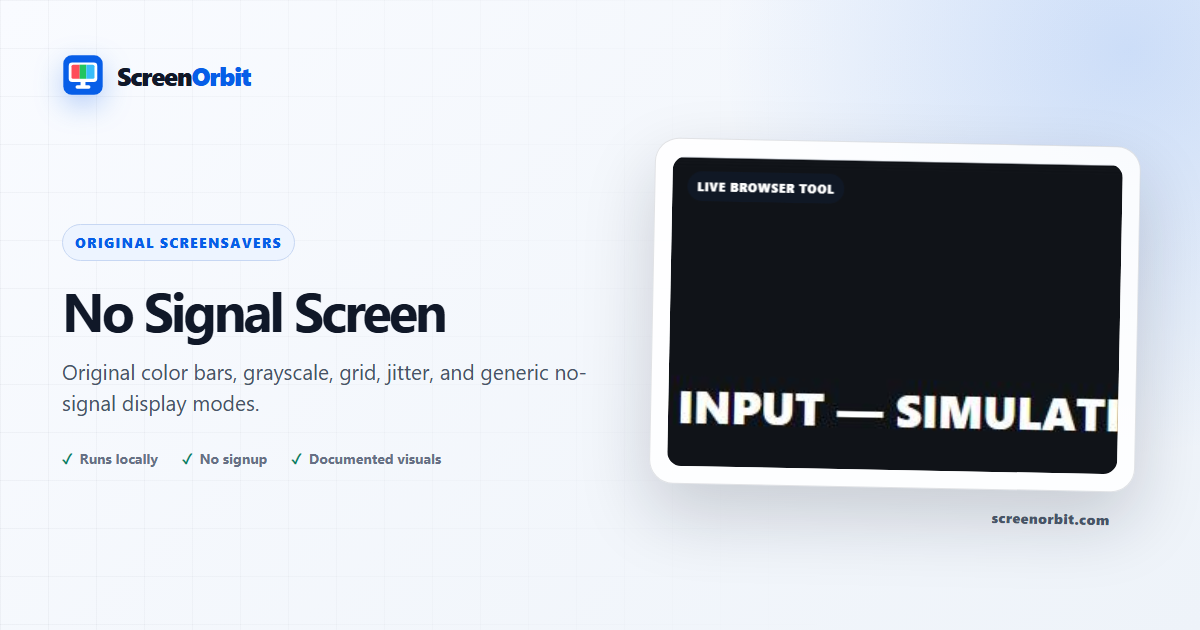
A broadcast-inspired scene made from original patterns
No Signal Screen provides generic signal-loss messages, color bars, grayscale, geometry grid, and optional jitter for mockups, streams, videos, and creative projects. It does not copy a broadcaster’s ident, a proprietary test card, or a certified SMPTE calibration chart. The visuals are drawn by ScreenOrbit code and the current still can be generated locally.
Five distinct modes
- No Signal uses a neutral input-status composition with no real network or device claim.
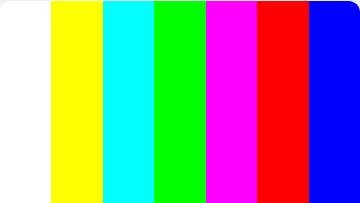
- Color Bars provides a project-authored arrangement for a familiar production cue, not measurement.
- Grayscale shows broad tonal regions for visual composition.
- Grid supplies an original geometry background for staging and mockups.
- Jitter adds restrained horizontal movement only after the user enables it.
Use it safely and honestly
The screen is a visual simulator. It cannot detect an input, tune a television, measure a signal, or calibrate color. Do not present it as a genuine emergency or broadcast notice. Fullscreen requires a user action, the exit remains available, and the motion loop pauses in a hidden tab. Reduced-motion preference removes jitter by default.
When capturing a still, choose the mode and motion state first. The exported image contains the original pattern rather than the surrounding controls. Color can vary across browsers and displays, so do not use this output where regulated or measured reference values are required.
For a more chaotic procedural effect use Static Screen. For display-inspection patterns use the separate Monitor Test, whose guidance explains what each stage can reveal. This separation prevents a creative signal graphic from being mistaken for diagnostic evidence.
Plan a useful session with No Signal Screen
No Signal Screen works best when you start with one question. Decide what you need to view, compare, create, record, or demonstrate. Keep the first run at the default state. Change one control after you understand the starting result. This approach gives you a clear baseline and a useful reason for every adjustment.
Create a broadcast-inspired test screen for creative productions without copying a broadcaster or claiming calibration accuracy. Use the normal page view to prepare the settings. Enter fullscreen only after you review the exit control. Write down the mode and key values when you need to repeat the result on another device.
Choose controls by outcome
The available modes include no signal, color bars, grayscale, grid, jitter. The control set includes fullscreen, animation, keyboard, quick download, reset. Start with the option closest to your task. Avoid changing every value at once. A single change gives you a direct before-and-after comparison and makes a saved result easier to explain.
- Create a generic no-input scene for a film or stream. Set a clear finish point before you begin.
- Use original bars or grids in a mockup. Set a clear finish point before you begin.
- Download a still version of the current pattern. Set a clear finish point before you begin.
Run a repeatable workflow
- Stage 1. Choose no signal, bars, grayscale, grid, or jitter. Record the starting environment and state.
- Stage 2. Set motion low before starting. Keep the first comparison short and controlled.
- Stage 3. Use fullscreen or download a still pattern. Reset the page when the session ends.
For a device comparison, use the same browser family, viewport, room light, physical brightness, and viewing distance where practical. Run the same order on both devices. Change one environmental factor only after the matched pass is complete. Keep this route focused on this use: Create a generic no-input scene for a film or stream.
Keep a useful record
A useful record names the page, mode, control values, browser, device, viewport, date, and viewing condition. For a visual observation, describe the location and the fields where the effect appears. For a generated asset, record dimensions, format, color values, and the downloaded file name. For a simulation, record the duration, custom text, disclosure, and exit method. The starting reference for this page is no signal.
- Patterns are original and are not SMPTE-certified calibration charts.
- Jitter is disabled by reduced-motion preference.
Avoid common setup errors
- For this use, do not treat a browser view as a hardware measurement or system action: Create a generic no-input scene for a film or stream.
- Do not change several settings before you record the baseline. Begin with no signal.
- Do not rely on a phone photograph as the only evidence. Keep this route limit in view: Patterns are original and are not SMPTE-certified calibration charts.
- Do not leave route features active after the task ends. The main controls include fullscreen, animation, keyboard, quick download.
- Do not add private data, credentials, payment details, or confidential text. Keep the second listed use in scope: Use original bars or grids in a mockup.
Continue with the closest comparison
Open a related route when the first page reveals a new question. Keep the same environment and repeat only the part needed for comparison. The closest listed routes are TV Static Screen, Monitor Test, Digital Rain Screensaver. Keep this final use in mind: Download a still version of the current pattern.
- TV Static Screen. Procedural black-and-white or color television static with controlled motion and still export.
- Monitor Test. A complete guided sequence for pixels, levels, gradients, sharpness, geometry, and motion.
- Digital Rain Screensaver. Original falling-code ambience with density, speed, color, trail, and glyph controls.
Recommended guides
Questions about No Signal Screen
What does No Signal Screen do?
Create a broadcast-inspired test screen for creative productions without copying a broadcaster or claiming calibration accuracy. Create a generic no-input scene for a film or stream. Use original bars or grids in a mockup.
Who gets the most value from this page?
Use this page when your task matches the listed purpose. Create a generic no-input scene for a film or stream. Use original bars or grids in a mockup. Start with a clear goal and stop once the page answers that goal.
Which No Signal Screen setting should you choose first?
Start with no signal, color bars, grayscale, grid, jitter. Keep the default state for the first pass. Change one control, review the result, then record the setting before another change.
What should you prepare before fullscreen?
Choose a moderate speed, size, and brightness. Review the pause and exit controls before fullscreen. Respect reduced-motion preferences. Choose no signal, bars, grayscale, grid, or jitter. Set motion low before starting.
Does this page change hardware or system settings?
The browser experience does not replace a lock screen, sleep timer, security control, calibration process, or manufacturer panel-care feature. The no signal mode and Reset affect local page state only.
How should you judge the result?
Judge motion by comfort, frame stability, and the intended recording or ambient use. Stop the scene when the display no longer needs to stay active. Patterns are original and are not SMPTE-certified calibration charts. Jitter is disabled by reduced-motion preference.
Does the page upload files or settings?
No tool state is uploaded by ScreenOrbit. Supported local files stay in the current browser tab. Generated files are assembled in browser memory and download to your device. The starting mode is no signal. The first use is: Create a generic no-input scene for a film or stream.
Which phones, tablets, and computers support the tool?
Current desktop and mobile browsers support the core page. Fullscreen, Wake Lock, downloads, audio, and local file access depend on browser and operating system support. The visible control set starts with fullscreen. The first use is: Create a generic no-input scene for a film or stream.
What mistakes reduce the value of the page?
Avoid leaving a bright animated page unattended. Long sessions consume power and do not guarantee protection from image retention. Keep the goal, settings, environment, and exit plan clear. The first listed use is: Create a generic no-input scene for a film or stream.
Which ScreenOrbit tool should you open after No Signal Screen?
Continue with TV Static Screen, Monitor Test, Digital Rain Screensaver. The related links preserve the same task area while giving you another field, pattern, or workflow for comparison.