
Hair On Screen Prank
A realistic hair-strand overlay with local placement, tint, opacity, length, count, and still-image download.
Related tools
Practical uses for Hair On Screen Prank
- Create a gentle screen-cleaning joke.
- Generate a strand overlay for a mockup.
- Demonstrate how surface debris can resemble a display defect.
A careful three-step workflow
- 1
Confirm safe use and choose one or several strands.
- 2
Adjust curve, length, angle, opacity, and color.
- 3
Start fullscreen or randomize until the placement looks natural.
Interpret the result in context
- The strand is transformed by local code and cannot affect the screen.
- Do not obstruct a device being used for safety-critical work.
- State for Hair On Screen Prank is processed locally and resets from the normal page view.
A detailed macro strand with live placement controls
Hair on Screen uses a high-resolution transparent strand on a clean white surface. Its placement, scale, angle, tint, opacity, and count are transformed locally in the browser before randomizing. The placement remains stable so the strand does not jitter or change shape from frame to frame.
Why restraint looks more realistic
One slightly curved, fine strand is usually more convincing than many thick lines. The transparent source preserves its tapered silhouette, minute thickness variation, low-contrast highlight, and contact shadow while runtime tinting keeps the selected color natural. Direction presets help position it near an edge without requiring pixel-level drawing.
Responsible use
This harmless visual can still lead someone to rub or scratch a display. Use it only with consent, reveal it promptly, and never encourage cleaning with an unsafe liquid or sharp object. The page does not inspect the screen and cannot identify actual debris. Fullscreen is optional, Escape remains active, and a still result is generated locally.
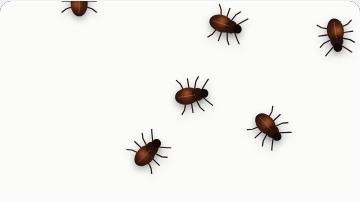
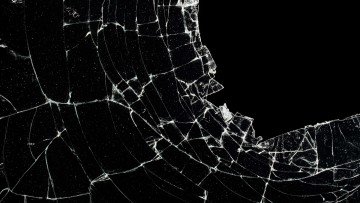
Use Bug on Screen for a moving effect or Broken Screen for an obviously dramatic scene. For actual maintenance, follow Safe Monitor Cleaning and the display manufacturer’s instructions.
Plan a useful session with Hair On Screen Prank
Hair On Screen Prank works best when you start with one question. Decide what you need to view, compare, create, record, or demonstrate. Keep the first run at the default state. Change one control after you understand the starting result. This approach gives you a clear baseline and a useful reason for every adjustment.
A realistic hair-strand overlay with local placement, tint, opacity, length, count, and still-image download. Use the normal page view to prepare the settings. Enter fullscreen only after you review the exit control. Write down the mode and key values when you need to repeat the result on another device.
Choose controls by outcome
The available modes include single, subtle, scattered. The control set includes fullscreen, animation, keyboard, safe exit, reset. Start with the option closest to your task. Avoid changing every value at once. A single change gives you a direct before-and-after comparison and makes a saved result easier to explain.
- Create a gentle screen-cleaning joke. Set a clear finish point before you begin.
- Generate a strand overlay for a mockup. Set a clear finish point before you begin.
- Demonstrate how surface debris can resemble a display defect. Set a clear finish point before you begin.
Run a repeatable workflow
- Stage 1. Confirm safe use and choose one or several strands. Record the starting environment and state.
- Stage 2. Adjust curve, length, angle, opacity, and color. Keep the first comparison short and controlled.
- Stage 3. Start fullscreen or randomize until the placement looks natural. Reset the page when the session ends.
For a device comparison, use the same browser family, viewport, room light, physical brightness, and viewing distance where practical. Run the same order on both devices. Change one environmental factor only after the matched pass is complete. Keep this route focused on this use: Create a gentle screen-cleaning joke.
Keep a useful record
A useful record names the page, mode, control values, browser, device, viewport, date, and viewing condition. For a visual observation, describe the location and the fields where the effect appears. For a generated asset, record dimensions, format, color values, and the downloaded file name. For a simulation, record the duration, custom text, disclosure, and exit method. The starting reference for this page is single.
- The strand is transformed by local code and cannot affect the screen.
- Do not obstruct a device being used for safety-critical work.
Avoid common setup errors
- For this use, do not treat a browser view as a hardware measurement or system action: Create a gentle screen-cleaning joke.
- Do not change several settings before you record the baseline. Begin with single.
- Do not rely on a phone photograph as the only evidence. Keep this route limit in view: The strand is transformed by local code and cannot affect the screen.
- Do not leave route features active after the task ends. The main controls include fullscreen, animation, keyboard, safe exit.
- Do not add private data, credentials, payment details, or confidential text. Keep the second listed use in scope: Generate a strand overlay for a mockup.
Continue with the closest comparison
Open a related route when the first page reveals a new question. Keep the same environment and repeat only the part needed for comparison. The closest listed routes are Bug On Screen Prank, Broken Screen Prank, Black Screen. Keep this final use in mind: Demonstrate how surface debris can resemble a display defect.
- Bug On Screen Prank. A detailed insect sprite with live count, size, speed, movement, shadow, and random placement.
- Broken Screen Prank. A responsive broken-display simulation with distinct glass, LCD, whiteout, corner-impact, and mobile damage styles.
- Black Screen. A pure black fullscreen surface for dark-room checks and distraction-free secondary displays.
Recommended guides
Questions about Hair On Screen Prank
What does Hair On Screen Prank do?
A realistic hair-strand overlay with local placement, tint, opacity, length, count, and still-image download. Create a gentle screen-cleaning joke. Generate a strand overlay for a mockup.
Who gets the most value from this page?
Use this page when your task matches the listed purpose. Create a gentle screen-cleaning joke. Generate a strand overlay for a mockup. Start with a clear goal and stop once the page answers that goal.
Which Hair On Screen Prank setting should you choose first?
Start with single, subtle, scattered. Keep the default state for the first pass. Change one control, review the result, then record the setting before another change.
What should you prepare before fullscreen?
Get permission from the device owner. Rehearse Escape and keep the session short. Choose a setting where a false screen will not interrupt work or safety. Confirm safe use and choose one or several strands. Adjust curve, length, angle, opacity, and color.
Does this page change hardware or system settings?
The scene runs inside one browser tab. The page does not read files, lock the device, inspect accounts, request payment, or perform a system action. The single mode and Reset affect local page state only.
How should you judge the result?
Treat the page as disclosed entertainment or a planned production prop. End the scene as soon as the viewer shows concern. The strand is transformed by local code and cannot affect the screen. Do not obstruct a device being used for safety-critical work.
Does the page upload files or settings?
No tool state is uploaded by ScreenOrbit. Supported local files stay in the current browser tab. Generated files are assembled in browser memory and download to your device. The starting mode is single. The first use is: Create a gentle screen-cleaning joke.
Which phones, tablets, and computers support the tool?
Current desktop and mobile browsers support the core page. Fullscreen, Wake Lock, downloads, audio, and local file access depend on browser and operating system support. The visible control set starts with fullscreen. The first use is: Create a gentle screen-cleaning joke.
What mistakes reduce the value of the page?
Avoid public, workplace, school, medical, retail, and support contexts without written authorization. Never add private data or a payment request. Keep the goal, settings, environment, and exit plan clear. The first listed use is: Create a gentle screen-cleaning joke.
Which ScreenOrbit tool should you open after Hair On Screen Prank?
Continue with Bug On Screen Prank, Broken Screen Prank, Black Screen. The related links preserve the same task area while giving you another field, pattern, or workflow for comparison.