
White Screen Image
Generate white backgrounds from 1×1 pixels through guarded 8K presets with descriptive filenames and local downloads.
Related tools


Practical uses for White Screen Image
- Create a clean wallpaper or background.
- Generate a precise canvas size for a design.
- Download a tiny SVG for scalable white surfaces.
A careful three-step workflow
- 1
Choose a preset or enter width and height.
- 2
Select PNG, JPEG, WebP, or SVG.
- 3
Generate the file locally; lower the size if the browser reports a memory limit.
Interpret the result in context
- Raster output is capped at 33,177,600 pixels.
- Solid white images are published under the site image license; interface and written content are not.
- State for White Screen Image is processed locally and resets from the normal page view.
Generate an exact white image in your browser
This tool creates a clean #FFFFFF background at the dimensions and file type you choose. Use a common preset for Full HD, QHD, 4K, 8K, or square output, or enter custom width and height values. The result is rendered locally and downloaded directly; ScreenOrbit does not receive the dimensions, image, or file.

Choose the right format
- PNG is lossless and widely supported. It is a reliable choice for design canvases and UI backgrounds.
- JPEG is broadly compatible but uses lossy compression. A flat white file can still contain compression metadata or minor encoding differences.
- WebP can create a compact modern raster file when the target software supports it.
- SVG describes a scalable white rectangle and stays tiny because it does not store millions of individual pixels.
Dimensions, aspect ratio, and memory
Linked dimensions preserve the selected aspect ratio while you change one side. Unlock them when you need an exact independent width and height. Raster output is guarded at 33,177,600 pixels to avoid an accidental memory spike. Even within that limit, an 8K canvas can use substantial memory on a phone or older browser. If export fails, choose a smaller preset or SVG; the page catches the error rather than repeatedly allocating a canvas.
| Preset | Exact size | Typical use |
|---|---|---|
| Full HD | 1920 × 1080 | Slides, video frames, and standard wallpapers |
| QHD | 2560 × 1440 | Desktop backgrounds and larger canvases |
| 4K UHD | 3840 × 2160 | High-resolution displays and video projects |
| 8K UHD | 7680 × 4320 | Specialized output on devices with enough memory |
| Square | 1080 × 1080 | Neutral social or design canvas |
Useful white-image workflows
A white background can serve as a presentation slide, design placeholder, video-call backdrop, printable reference, or neutral wallpaper. If you only need a temporary luminous surface, the White Screen avoids a download. If you want multiple colors or a smooth transition, use the Gradient Background Generator. A downloaded image is not a calibration target and cannot guarantee a particular measured luminance because the display, application, and color-management pipeline determine the final output.
Generated solid and gradient files are covered by the project’s stated image license; the ScreenOrbit interface, source code, and written content are separate works. Review the terms before redistributing assets as part of a product.
Plan a useful session with White Screen Image
White Screen Image works best when you start with one question. Decide what you need to view, compare, create, record, or demonstrate. Keep the first run at the default state. Change one control after you understand the starting result. This approach gives you a clear baseline and a useful reason for every adjustment.
Generate white backgrounds from 1×1 pixels through guarded 8K presets with descriptive filenames and local downloads. Use the normal page view to prepare the settings. Enter fullscreen only after you review the exit control. Write down the mode and key values when you need to repeat the result on another device.
Choose controls by outcome
The available modes include 1080p, 1440p, 4k, 8k, square, custom. The control set includes fullscreen, advanced export, quick download, keyboard, reset. Start with the option closest to your task. Avoid changing every value at once. A single change gives you a direct before-and-after comparison and makes a saved result easier to explain.
- Create a clean wallpaper or background. Set a clear finish point before you begin.
- Generate a precise canvas size for a design. Set a clear finish point before you begin.
- Download a tiny SVG for scalable white surfaces. Set a clear finish point before you begin.
Run a repeatable workflow
- Stage 1. Choose a preset or enter width and height. Record the starting environment and state.
- Stage 2. Select PNG, JPEG, WebP, or SVG. Keep the first comparison short and controlled.
- Stage 3. Generate the file locally; lower the size if the browser reports a memory limit. Reset the page when the session ends.
For a device comparison, use the same browser family, viewport, room light, physical brightness, and viewing distance where practical. Run the same order on both devices. Change one environmental factor only after the matched pass is complete. Keep this route focused on this use: Create a clean wallpaper or background.
Keep a useful record
A useful record names the page, mode, control values, browser, device, viewport, date, and viewing condition. For a visual observation, describe the location and the fields where the effect appears. For a generated asset, record dimensions, format, color values, and the downloaded file name. For a simulation, record the duration, custom text, disclosure, and exit method. The starting reference for this page is 1080p.
- Raster output is capped at 33,177,600 pixels.
- Solid white images are published under the site image license; interface and written content are not.
Avoid common setup errors
- For this use, do not treat a browser view as a hardware measurement or system action: Create a clean wallpaper or background.
- Do not change several settings before you record the baseline. Begin with 1080p.
- Do not rely on a phone photograph as the only evidence. Keep this route limit in view: Raster output is capped at 33,177,600 pixels.
- Do not leave route features active after the task ends. The main controls include fullscreen, advanced export, quick download, keyboard.
- Do not add private data, credentials, payment details, or confidential text. Keep the second listed use in scope: Generate a precise canvas size for a design.
Continue with the closest comparison
Open a related route when the first page reveals a new question. Keep the same environment and repeat only the part needed for comparison. The closest listed routes are White Screen, Gradient Background Generator, Black Screen. Keep this final use in mind: Download a tiny SVG for scalable white surfaces.
- White Screen. A clean fullscreen white display for light, cleaning, tracing, and visual checks.
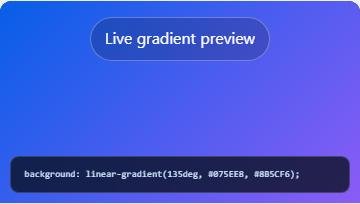
- Gradient Background Generator. Design two- or three-color linear and radial gradients, copy CSS, animate, and download.
- Black Screen. A pure black fullscreen surface for dark-room checks and distraction-free secondary displays.
Recommended guides
Questions about White Screen Image
What does White Screen Image do?
Generate white backgrounds from 1×1 pixels through guarded 8K presets with descriptive filenames and local downloads. Create a clean wallpaper or background. Generate a precise canvas size for a design.
Who gets the most value from this page?
Use this page when your task matches the listed purpose. Create a clean wallpaper or background. Generate a precise canvas size for a design. Start with a clear goal and stop once the page answers that goal.
Which White Screen Image setting should you choose first?
Start with 1080p, 1440p, 4k, 8k, square, custom. Keep the default state for the first pass. Change one control, review the result, then record the setting before another change.
What should you prepare before fullscreen?
Use native resolution where practical. Record scaling, HDR state, picture mode, room light, and viewing distance before starting the test. Choose a preset or enter width and height. Select PNG, JPEG, WebP, or SVG.
Does this page change hardware or system settings?
The browser shows controlled patterns or generates local output. The page does not inspect panel electronics, certify calibration, provide medical advice, or decide warranty status. The 1080p mode and Reset affect local page state only.
How should you judge the result?
Repeat the observation at another relevant level. Change one variable at a time. Confirm a pattern result in ordinary work, video, or games before assigning practical weight. Raster output is capped at 33,177,600 pixels. Solid white images are published under the site image license; interface and written content are not.
Does the page upload files or settings?
No tool state is uploaded by ScreenOrbit. Supported local files stay in the current browser tab. Generated files are assembled in browser memory and download to your device. The starting mode is 1080p. The first use is: Create a clean wallpaper or background.
Which phones, tablets, and computers support the tool?
Current desktop and mobile browsers support the core page. Fullscreen, Wake Lock, downloads, audio, and local file access depend on browser and operating system support. The visible control set starts with fullscreen. The first use is: Create a clean wallpaper or background.
What mistakes reduce the value of the page?
Avoid changing brightness, picture mode, viewing angle, and room light at the same time. Multiple changes make the result hard to reproduce. Keep the goal, settings, environment, and exit plan clear. The first listed use is: Create a clean wallpaper or background.
Which ScreenOrbit tool should you open after White Screen Image?
Continue with White Screen, Gradient Background Generator, Black Screen. The related links preserve the same task area while giving you another field, pattern, or workflow for comparison.