
Hacker Typer Screen
A safe fake hacking-screen simulator with original snippets, speed, theme, color, font size, autoscroll, and optional sound.
Related tools
Practical uses for Hacker Typer Screen
- Create a fictional coding shot for a video.
- Use a theatrical terminal during a presentation.
- Run an explicitly fake hacker-screen prank.
A careful three-step workflow
- 1
Confirm the simulator disclosure and select a visual theme.
- 2
Set font size, speed, colors, autoscroll, and optional sound.
- 3
Start typing; reset with the visible control or R.
Interpret the result in context
- No typed key becomes a command and no network or system action is performed.
- Displayed snippets are original fictional examples rather than proprietary source code.
- State for Hacker Typer Screen is processed locally and resets from the normal page view.
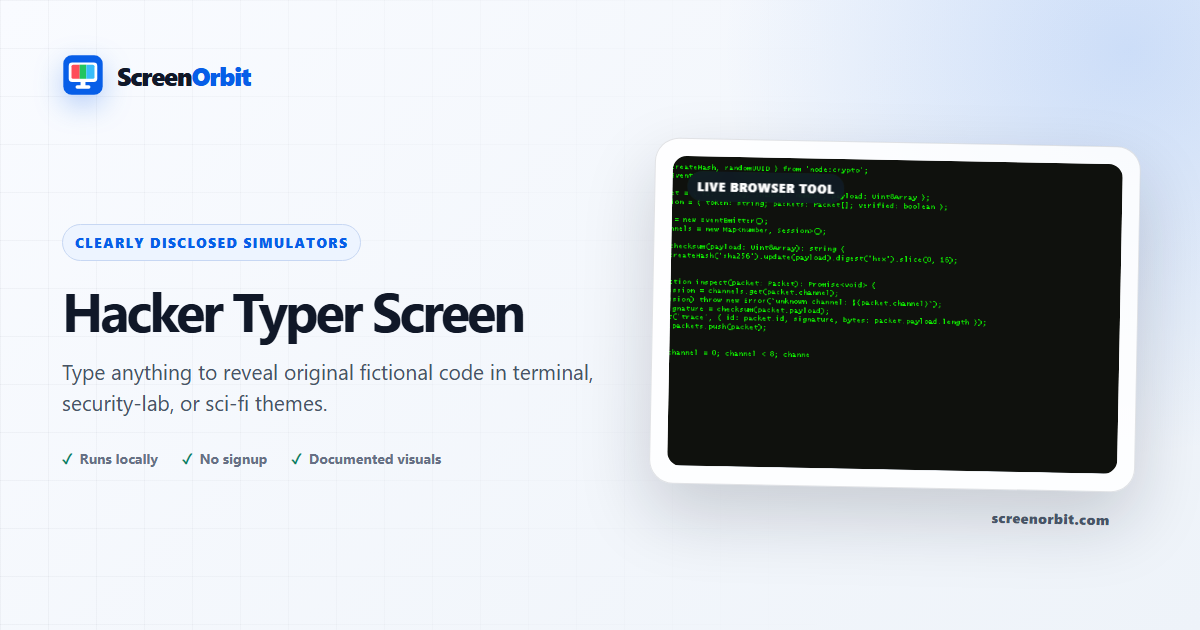
A responsive fictional coding terminal for performance and play
Hacker Typer begins with a blank near-black terminal. Each keypress reveals characters from a project-authored sample at the selected speed, so the output feels responsive without executing the text. Choose a theme, font size, foreground and background colors, autoscroll, and an optional sound that remains off until deliberately enabled.
What happens when you type
Keyboard input advances through display-only source samples. It does not run commands, open a shell, inspect the computer, connect to a server, or grant access to anything. Mobile users receive a focused text-input surface so the on-screen keyboard can participate without hiding the terminal controls. Reset clears the displayed session and restores a known starting point.
Create a convincing but clearly fictional scene
- Use a small monospace size and moderate reveal speed for a dense terminal.
- Keep autoscroll on when typing continuously; turn it off to hold a particular section.
- Use sound sparingly and at low volume. Audio starts only after a direct user action.
- Enter fullscreen for a recording or consent-based joke, then press Escape to leave.
Original code for film, theatre, streaming, and classroom demonstrations
Use Hacker Typer when a scene needs readable terminal movement without exposing a real repository, command history, customer name, server address, or credential. A performer can press ordinary keys while the controlled sample advances at a consistent rate. For film or theatre, rehearse the reveal speed and line breaks at the final display size. For OBS or another recording workflow, capture the dedicated browser window after hiding notifications and unrelated tabs.
The sample resembles general software structure but is intentionally non-operational. It does not teach intrusion, target a service, or reproduce a proprietary codebase. If a production needs exact dialogue or commands, create and review a harmless custom graphic outside this tool rather than suggesting that the displayed sample performs a real action.
Accessibility and privacy behavior
Color choices should keep a readable contrast between text and background; neon green on black is optional, not required. Increase the monospace size before moving closer to a large display. Autoscroll can be disabled when movement is distracting, sound begins only after a click, and reduced-motion settings keep nonessential effects restrained. The page does not record typed keys as a password or send them to a server; the keystroke simply advances a local fictional buffer.
What Hacker Typer does not prove
A dense terminal is a visual convention, not evidence that somebody has hacked a device. This tool cannot reach files, accounts, cameras, networks, shells, or administrator controls. If an unexpected page claims real access, leave fullscreen with Escape, close the tab, and verify the device through trusted security or IT channels. The browser-simulation recognition guide explains these checks in detail.
Licensing and ethical limits
Samples are recorded in the asset provenance register and contain no credentials, exploit instructions, copied competitor code, or claim of real access. Do not use the tool to impersonate an administrator, frighten someone during a genuine incident, or persuade anyone that you have compromised a device.
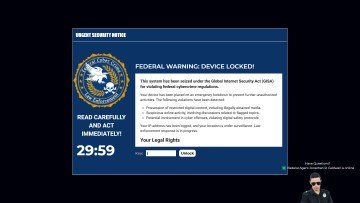
For passive cyber ambience use Digital Rain. For a clearly fictional security alert use Computer Virus Prank. Both keep system permissions and real data out of the experience.
Plan a useful session with Hacker Typer Screen
Hacker Typer Screen works best when you start with one question. Decide what you need to view, compare, create, record, or demonstrate. Keep the first run at the default state. Change one control after you understand the starting result. This approach gives you a clear baseline and a useful reason for every adjustment.
A safe fake hacking-screen simulator with original snippets, speed, theme, color, font size, autoscroll, and optional sound. Use the normal page view to prepare the settings. Enter fullscreen only after you review the exit control. Write down the mode and key values when you need to repeat the result on another device.
Choose controls by outcome
The available modes include terminal, security lab, sci fi. The control set includes fullscreen, animation, keyboard, safe exit, reset. Start with the option closest to your task. Avoid changing every value at once. A single change gives you a direct before-and-after comparison and makes a saved result easier to explain.
- Create a fictional coding shot for a video. Set a clear finish point before you begin.
- Use a theatrical terminal during a presentation. Set a clear finish point before you begin.
- Run an explicitly fake hacker-screen prank. Set a clear finish point before you begin.
Run a repeatable workflow
- Stage 1. Confirm the simulator disclosure and select a visual theme. Record the starting environment and state.
- Stage 2. Set font size, speed, colors, autoscroll, and optional sound. Keep the first comparison short and controlled.
- Stage 3. Start typing; reset with the visible control or R. Reset the page when the session ends.
For a device comparison, use the same browser family, viewport, room light, physical brightness, and viewing distance where practical. Run the same order on both devices. Change one environmental factor only after the matched pass is complete. Keep this route focused on this use: Create a fictional coding shot for a video.
Keep a useful record
A useful record names the page, mode, control values, browser, device, viewport, date, and viewing condition. For a visual observation, describe the location and the fields where the effect appears. For a generated asset, record dimensions, format, color values, and the downloaded file name. For a simulation, record the duration, custom text, disclosure, and exit method. The starting reference for this page is terminal.
- No typed key becomes a command and no network or system action is performed.
- Displayed snippets are original fictional examples rather than proprietary source code.
Avoid common setup errors
- For this use, do not treat a browser view as a hardware measurement or system action: Create a fictional coding shot for a video.
- Do not change several settings before you record the baseline. Begin with terminal.
- Do not rely on a phone photograph as the only evidence. Keep this route limit in view: No typed key becomes a command and no network or system action is performed.
- Do not leave route features active after the task ends. The main controls include fullscreen, animation, keyboard, safe exit.
- Do not add private data, credentials, payment details, or confidential text. Keep the second listed use in scope: Use a theatrical terminal during a presentation.
Continue with the closest comparison
Open a related route when the first page reveals a new question. Keep the same environment and repeat only the part needed for comparison. The closest listed routes are Digital Rain Screensaver, Computer Virus Prank, Loading Screen Prank. Keep this final use in mind: Run an explicitly fake hacker-screen prank.
- Digital Rain Screensaver. Original falling-code ambience with density, speed, color, trail, and glyph controls.
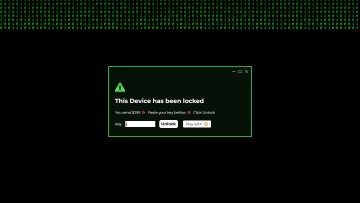
- Computer Virus Prank. A fictional system-alert animation that performs no scan, lock, download, or system action.
- Loading Screen Prank. A high-fidelity buffering player with a live title, timeline, duration, loading point, and fullscreen view.
Recommended guides
Questions about Hacker Typer Screen
What does Hacker Typer Screen do?
A safe fake hacking-screen simulator with original snippets, speed, theme, color, font size, autoscroll, and optional sound. Create a fictional coding shot for a video. Use a theatrical terminal during a presentation.
Who gets the most value from this page?
Use this page when your task matches the listed purpose. Create a fictional coding shot for a video. Use a theatrical terminal during a presentation. Start with a clear goal and stop once the page answers that goal.
Which Hacker Typer Screen setting should you choose first?
Start with terminal, security lab, sci fi. Keep the default state for the first pass. Change one control, review the result, then record the setting before another change.
What should you prepare before fullscreen?
Get permission from the device owner. Rehearse Escape and keep the session short. Choose a setting where a false screen will not interrupt work or safety. Confirm the simulator disclosure and select a visual theme. Set font size, speed, colors, autoscroll, and optional sound.
Does this page change hardware or system settings?
The scene runs inside one browser tab. The page does not read files, lock the device, inspect accounts, request payment, or perform a system action. The terminal mode and Reset affect local page state only.
How should you judge the result?
Treat the page as disclosed entertainment or a planned production prop. End the scene as soon as the viewer shows concern. No typed key becomes a command and no network or system action is performed. Displayed snippets are original fictional examples rather than proprietary source code.
Does the page upload files or settings?
No tool state is uploaded by ScreenOrbit. Supported local files stay in the current browser tab. Generated files are assembled in browser memory and download to your device. The starting mode is terminal. The first use is: Create a fictional coding shot for a video.
Which phones, tablets, and computers support the tool?
Current desktop and mobile browsers support the core page. Fullscreen, Wake Lock, downloads, audio, and local file access depend on browser and operating system support. The visible control set starts with fullscreen. The first use is: Create a fictional coding shot for a video.
What mistakes reduce the value of the page?
Avoid public, workplace, school, medical, retail, and support contexts without written authorization. Never add private data or a payment request. Keep the goal, settings, environment, and exit plan clear. The first listed use is: Create a fictional coding shot for a video.
Which ScreenOrbit tool should you open after Hacker Typer Screen?
Continue with Digital Rain Screensaver, Computer Virus Prank, Loading Screen Prank. The related links preserve the same task area while giving you another field, pattern, or workflow for comparison.