
All Screen Tools
Filter the complete collection of 44 private, browser-native display tools.
44 tools














No tools match that search. Try a shorter term or choose All.
One catalog, separated by purpose
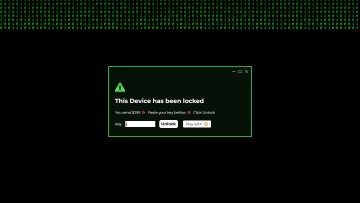
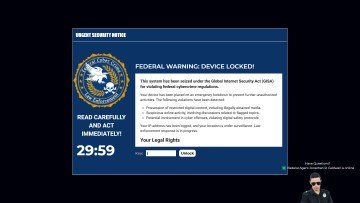
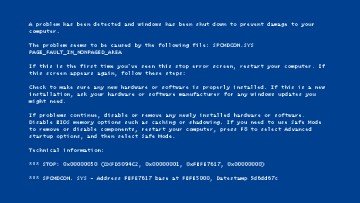
ScreenOrbit keeps professional display checks distinct from entertainment. Colors provide exact browser-rendered fields. Screen Tests combine visual patterns, file generators, light, and locally synthesized audio. Screensavers are ambient experiences. Pranks and fake updates are clearly labeled simulations with separate safety gates.
Use the filter above to narrow the catalog without generating a new search-results URL. Every tool remains reachable through a stable canonical path, its category hub, contextual related links, and at least one guide where interpretation or safe use benefits from explanation.
Privacy and compatibility
Tool settings stay in local browser storage and can be reset. Selected images are decoded in the current tab. No custom API stores tool results, and immersive pages do not request device permissions. Current versions of Chromium, Firefox, and WebKit are covered by automated smoke tests, while exact Fullscreen and Wake Lock support still depends on the browser and operating system.
For a structured starting point, open the Monitor Test, the Gradient Generator, or the DVD Screensaver. For interpretation, begin with the new-monitor inspection checklist.
Catalog architecture
| Collection | URLs | Primary purpose |
|---|---|---|
| Colors | 14 | Exact solid fields, lighting, and downloads |
| Screen tests and utilities | 8 | Observation, generation, light, and local audio |
| Screensavers | 6 | Ambient clocks, motion, text, and procedural scenes |
| Pranks | 9 | Disclosed entertainment simulations |
| Fake updates | 7 | Distinct OS-inspired progress scenes |
Stable routes and deliberate consolidation
Bright White remains a mode of the homepage instead of a duplicate URL. White Screen Test is a guided mode of Monitor Test. Bouncing badge, custom text, and local-image behavior share one DVD Screensaver route. Zoom Lighting owns monitor, webcam, video-call, and virtual ring-light intent. White Noise owns generated audio while Static Screen owns television-like visual noise.
This structure gives each canonical page a coherent job and prevents thin variants from competing with one another. The client-side catalog filter changes only what is shown; it does not create indexable query results. Every tool stays within three clicks of the homepage.
What “complete” means for a tool
A catalog card is not enough. A color route must render the declared default, provide a clean fullscreen field, preserve accessible controls, and download locally. A diagnostic route must use a distinct accurate pattern and explain what the pattern can and cannot reveal. A screensaver must remain stable through resize, pause when hidden, and provide reduced-motion behavior.
Pranks and fake updates have additional gates: documented visual rights, fictional data, pre-activation disclosure, untouched Escape behavior, no browser trapping, no permission requests, and no credential or payment collection, downloads, personal-location access, or real system claims. Every route also needs unique editorial copy, metadata, canonical, connected schema, internal links, a social image, and an asset/provenance record.
Search by task, not by novelty
If you know the symptom, start from Screen Tests. If you know the desired field, start from Colors. Use Screensavers for ambience and choose Pranks or Fake Updates only for clearly disclosed entertainment. This separation keeps a user seeking monitor evidence away from a creative effect that merely looks technical.
The catalog search matches title, purpose, and modes locally. It sends no search term to WordPress and does not store a server-side search history. Clearing the input restores the full inventory.
Use this page for one clear task
Search all 44 tools by task while keeping each search intent on one stable route. Visitors who know the desired result but not the tool name use this complete catalog. Write down the result you need before you follow a link or change a setting. A narrow goal saves time and keeps the final decision tied to evidence.
Read the full page once before acting when the task involves a display test, cleaning step, simulation, file right, privacy request, or support report. Then return to the exact section needed for the work. Keep the stated limits visible while you decide the next step. This route focuses on: Search all 44 tools by task while keeping each search intent on one stable route.
Prepare a stable starting point
Choose the collection first, then search by symptom, output, motion, color, or simulation style. Record the starting state before you change a control, move a device, submit a form, or rely on a policy statement. Use current source material and the current page version for any formal review.
Keep one issue per session or message. Separate a visual symptom from a hardware claim. Separate a browser simulation from a system event. Separate a generated file from third-party material placed inside the file. These boundaries make the evidence easier to assess. The main route risk is: Opening several similar tools without a goal creates conflicting observations and duplicate work.
Follow a practical four-part process
- Define the goal. Search all 44 tools by task while keeping each search intent on one stable route. Stop if the task changes into a different problem.
- Capture the baseline. Note the selected route and settings instead of relying on a filtered catalog view. Use exact values and names where they exist.
- Check the main risk. Opening several similar tools without a goal creates conflicting observations and duplicate work. Correct the setup before repeating the step.
- Choose the next action. Start with Monitor Test for display inspection, Gradient Generator for an asset, or DVD Screensaver for motion. Keep the original record for comparison.
Build evidence another person understands
Note the selected route and settings instead of relying on a filtered catalog view. Add the date and the page URL. Remove passwords, addresses, serial numbers, payment data, private messages, and confidential logs before sharing a screenshot or report. A short written sequence often carries more value than one close photograph.
For a comparison, repeat the same order and keep every unrelated variable stable. For a policy or rights question, quote the exact file or clause in your own words and link the source. For a bug, include expected behavior, observed behavior, and the smallest reliable reproduction path. This route asks you to record: Note the selected route and settings instead of relying on a filtered catalog view.
Avoid weak evidence and unclear claims
- Opening several similar tools without a goal creates conflicting observations and duplicate work.
- The local filter changes visible cards. The filter does not create a new indexed search page.
- Avoid several setting changes between the baseline and the result. Preparation for this route: Choose the collection first, then search by symptom, output, motion, color, or simulation style.
- Avoid a private or model-specific claim without a current primary source. The page limit is: The local filter changes visible cards. The filter does not create a new indexed search page.
- Avoid private data in public screenshots, links, examples, and support messages. The useful evidence is: Note the selected route and settings instead of relying on a filtered catalog view.
- Avoid treating a search result, camera image, or forum comment as final proof. The main risk is: Opening several similar tools without a goal creates conflicting observations and duplicate work.
Move to the next useful action
Start with Monitor Test for display inspection, Gradient Generator for an asset, or DVD Screensaver for motion. Keep the baseline and the page limit beside the result. Contact the relevant maker, seller, platform, specialist, rights holder, or ScreenOrbit editor when the decision falls outside the page scope.
Questions about All Screen Tools
What is the main purpose of All Screen Tools?
Search all 44 tools by task while keeping each search intent on one stable route. The page keeps the task narrow so you reach a useful next action without mixing unrelated intent.
Who should use All Screen Tools?
Visitors who know the desired result but not the tool name use this complete catalog. Start with the stated task and use the linked route or policy for the next decision.
What should you prepare before following All Screen Tools?
Choose the collection first, then search by symptom, output, motion, color, or simulation style. Keep the starting state stable and write down any change you make during the process.
What information should you record for All Screen Tools?
Note the selected route and settings instead of relying on a filtered catalog view. Specific details help another person repeat the same check or review the same request.
What common error weakens the All Screen Tools result?
Opening several similar tools without a goal creates conflicting observations and duplicate work. Pause when the context changes and restart from a known state rather than guessing.
What does All Screen Tools exclude?
The local filter changes visible cards. The filter does not create a new indexed search page. Use the stated limit when deciding whether you need a maker, specialist, platform, or legal contact.
Does ScreenOrbit store settings from All Screen Tools?
Interactive tool settings stay in local browser storage where supported. Supported files stay in the tab. A contact message follows the separate contact and privacy process. Page scope: Search all 44 tools by task while keeping each search intent on one stable route.
Does All Screen Tools work on phones and computers?
The written steps work across screen sizes. Browser features differ by device. Fullscreen, downloads, Wake Lock, file access, and audio depend on current browser support. Preparation: Choose the collection first, then search by symptom, output, motion, color, or simulation style.
How often should you repeat the All Screen Tools process?
Repeat after a meaningful change such as a new device, display preset, browser, room condition, source, policy revision, or software release. Keep stable conditions for direct comparisons. Record: Note the selected route and settings instead of relying on a filtered catalog view.
What should you do after All Screen Tools?
Start with Monitor Test for display inspection, Gradient Generator for an asset, or DVD Screensaver for motion. Follow the closest linked route and keep the original goal, evidence, and limits in view.