
Windows 10 Fake Update
Run a high-fidelity independent update scene that never changes, reads, locks, or restarts the actual computer.
Related tools
Practical uses for Windows 10 Fake Update
- Stage a fictional update scene for a video or presentation.
- Run a harmless, consent-based prank.
- Demonstrate that a browser screen can imitate system UI.
A careful three-step workflow
- 1
Read the independent-simulator disclosure.
- 2
Choose a duration, starting percentage, and whether progress should loop.
- 3
Start the simulation, then enter fullscreen manually; press Escape to return.
Interpret the result in context
- Windows is a trademark of Microsoft Corporation; ScreenOrbit is not affiliated with Microsoft.
- Progress, messages, spacing, and status behavior are rendered locally at the current display size.
- State for Windows 10 Fake Update is processed locally and resets from the normal page view.
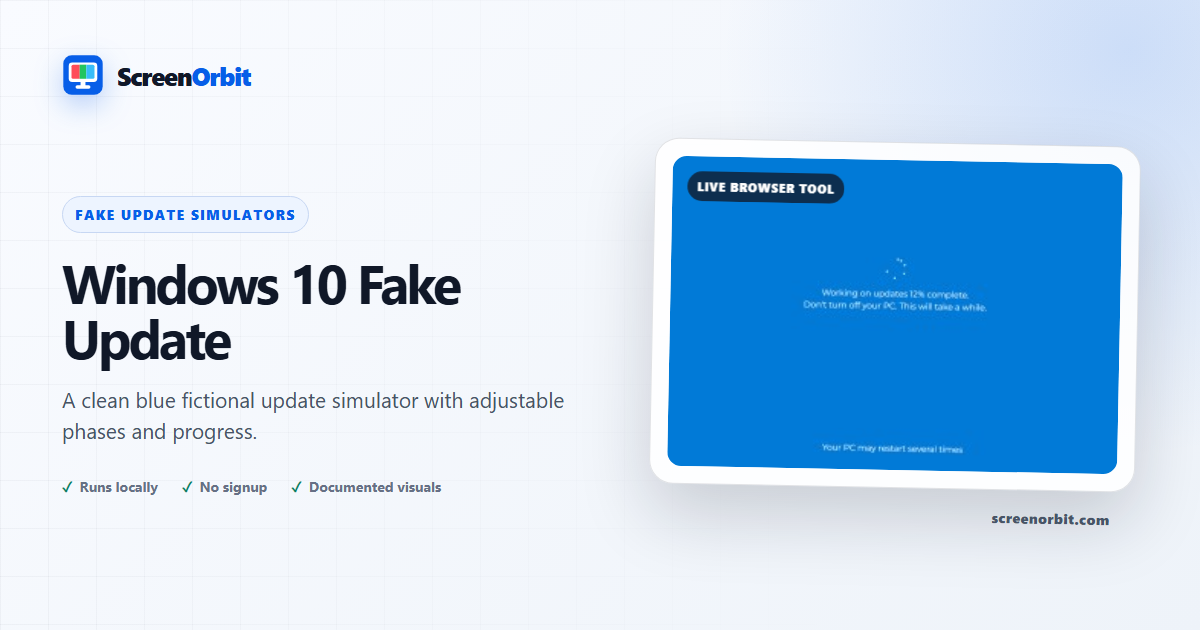
A clean blue update screen with live progress
The simulator renders its blue field, loading sequence, editable status copy, progress percentage, and restart note directly in the browser. Because the text is not baked into a background image, it remains sharp and reflows naturally on wide and narrow displays.
Adjust timing without touching the system
Select duration and start percentage before starting. Pause and Restart change only this page, while Loop repeats the fictional sequence. Every control remains available in the normal browser view. No update service, disk, registry, application, account, or device setting is accessed. The simulator never asks for a password or download.
| Control | What it changes | What it never changes |
|---|---|---|
| Duration | How quickly the on-page percentage advances | System update speed |
| Starting percentage | The fictional point where the scene begins | Installed files or update state |
| Status text | The visible production copy | Operating-system messages |
| Pause / Restart | The browser timer | The computer’s power or services |
| Loop | Whether the page animation repeats | Restart or shutdown behavior |
Always easy to leave
Fullscreen follows explicit consent and can be declined. Escape remains active, browser and operating-system shortcuts are never suppressed, and the page does not force fullscreen to reopen. Animation pauses when the page is hidden and respects reduced-motion settings.
Use it as a controlled production prop
For film, a stream break, or a classroom discussion about misleading interfaces, configure the duration and copy before capture. Record a dedicated browser window after hiding notifications and private tabs. The responsive layout can fill desktop or mobile ratios, but it remains a fictional Windows 10–style scene on every device. ScreenOrbit does not connect to OBS, a meeting service, or a streaming account.
Recognize the difference from a real update
A genuine update should be confirmed from trusted operating-system settings, not from a browser page that creates urgency. If you encounter an unexpected fullscreen message, try Escape, inspect the address bar, and do not enter credentials or call an unverified support number. Read the fake update and prank-screen recognition guide for a safe verification sequence.
Use the screen only for consensual entertainment or a production prop in a controlled setting. For a crash rather than an update, use Fake Blue Screen 10. For the black later-generation layout, use Windows 11–style Fake Update. Microsoft does not sponsor or endorse ScreenOrbit.
Plan a useful session with Windows 10 Fake Update
Windows 10 Fake Update works best when you start with one question. Decide what you need to view, compare, create, record, or demonstrate. Keep the first run at the default state. Change one control after you understand the starting result. This approach gives you a clear baseline and a useful reason for every adjustment.
Run a high-fidelity independent update scene that never changes, reads, locks, or restarts the actual computer. Use the normal page view to prepare the settings. Enter fullscreen only after you review the exit control. Write down the mode and key values when you need to repeat the result on another device.
Plan the Windows 10 Fake Update production frame
The Windows 10 scene uses a flat blue field, centered white status text, and measured vertical spacing. Test the frame at the final projector or video resolution. Keep text within two short lines. Extra alerts, QR codes, phone numbers, or payment language do not belong in an update rehearsal.
Prepare the scene and run sheet
Pick the duration from the production timeline. Use pause for a planned discussion point. Use restart for another take. Record the exact phase and starting value for continuity. Close the real Settings update page first. Save documents and rehearse Escape before an audience enters the room.
Review the recognition cues
Trusted Windows Update status appears in system Settings and follows device restart rules. This page follows one browser timer and stops with the tab. During training, ask viewers to locate browser state, test Escape, and compare the message with Settings. Disclose the simulation as soon as the recognition step ends.
Choose controls by outcome
The available modes include steady, slow. The control set includes fullscreen, animation, keyboard, safe exit, reset. Start with the option closest to your task. Avoid changing every value at once. A single change gives you a direct before-and-after comparison and makes a saved result easier to explain.
- Stage a fictional update scene for a video or presentation. Set a clear finish point before you begin.
- Run a harmless, consent-based prank. Set a clear finish point before you begin.
- Demonstrate that a browser screen can imitate system UI. Set a clear finish point before you begin.
Run a repeatable workflow
- Stage 1. Read the independent-simulator disclosure. Record the starting environment and state.
- Stage 2. Choose a duration, starting percentage, and whether progress should loop. Keep the first comparison short and controlled.
- Stage 3. Start the simulation, then enter fullscreen manually; press Escape to return. Reset the page when the session ends.
For a device comparison, use the same browser family, viewport, room light, physical brightness, and viewing distance where practical. Run the same order on both devices. Change one environmental factor only after the matched pass is complete. Keep this route focused on this use: Stage a fictional update scene for a video or presentation.
Keep a useful record
A useful record names the page, mode, control values, browser, device, viewport, date, and viewing condition. For a visual observation, describe the location and the fields where the effect appears. For a generated asset, record dimensions, format, color values, and the downloaded file name. For a simulation, record the duration, custom text, disclosure, and exit method. The starting reference for this page is steady.
- Windows is a trademark of Microsoft Corporation; ScreenOrbit is not affiliated with Microsoft.
- Progress, messages, spacing, and status behavior are rendered locally at the current display size.
Avoid common setup errors
- For this use, do not treat a browser view as a hardware measurement or system action: Stage a fictional update scene for a video or presentation.
- Do not change several settings before you record the baseline. Begin with steady.
- Do not rely on a phone photograph as the only evidence. Keep this route limit in view: Windows is a trademark of Microsoft Corporation; ScreenOrbit is not affiliated with Microsoft.
- Do not leave route features active after the task ends. The main controls include fullscreen, animation, keyboard, safe exit.
- Do not add private data, credentials, payment details, or confidential text. Keep the second listed use in scope: Run a harmless, consent-based prank.
Continue with the closest comparison
Open a related route when the first page reveals a new question. Keep the same environment and repeat only the part needed for comparison. The closest listed routes are Windows 11 Fake Update, Fake Windows 10 Blue Screen, Windows 7 Fake Update. Keep this final use in mind: Demonstrate that a browser screen can imitate system UI.
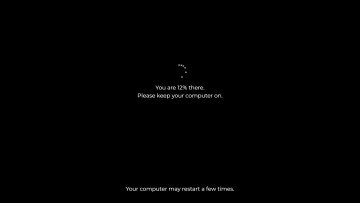
- Windows 11 Fake Update. A modern update scene with responsive typography, live animation, and fictional status copy.
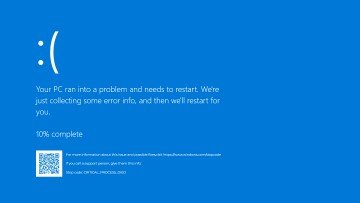
- Fake Windows 10 Blue Screen. A modern blue crash-screen scene with live progress and responsive typography.
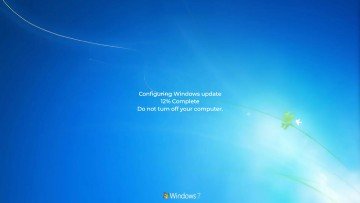
- Windows 7 Fake Update. An era-appropriate desktop update scene with crisp live progress and responsive spacing.
Recommended guides
Questions about Windows 10 Fake Update
What does Windows 10 Fake Update do?
Run a high-fidelity independent update scene that never changes, reads, locks, or restarts the actual computer. Stage a fictional update scene for a video or presentation. Run a harmless, consent-based prank.
Who gets the most value from this page?
Use this page when your task matches the listed purpose. Stage a fictional update scene for a video or presentation. Run a harmless, consent-based prank. Start with a clear goal and stop once the page answers that goal.
Which Windows 10 Fake Update setting should you choose first?
Start with steady, slow. Keep the default state for the first pass. Change one control, review the result, then record the setting before another change.
What should you prepare before fullscreen?
Get permission, choose a short duration, rehearse Escape, and make sure no real update or unsaved work is in progress. Read the independent-simulator disclosure. Choose a duration, starting percentage, and whether progress should loop.
Does this page change hardware or system settings?
The timer changes fictional progress inside one tab. The page does not install software, inspect files, restart the device, contact a vendor, or change system settings. The steady mode and Reset affect local page state only.
How should you judge the result?
Use the scene for a planned recording, demonstration, or disclosed joke. Close the tab after the session and verify normal device operation. Windows is a trademark of Microsoft Corporation; ScreenOrbit is not affiliated with Microsoft. Progress, messages, spacing, and status behavior are rendered locally at the current display size.
Does the page upload files or settings?
No tool state is uploaded by ScreenOrbit. Supported local files stay in the current browser tab. Generated files are assembled in browser memory and download to your device. The starting mode is steady. The first use is: Stage a fictional update scene for a video or presentation.
Which phones, tablets, and computers support the tool?
Current desktop and mobile browsers support the core page. Fullscreen, Wake Lock, downloads, audio, and local file access depend on browser and operating system support. The visible control set starts with fullscreen. The first use is: Stage a fictional update scene for a video or presentation.
What mistakes reduce the value of the page?
Avoid credentials, support numbers, payment requests, remote access, or claims about real device status. Those elements cross the stated safety boundary. Keep the goal, settings, environment, and exit plan clear. The first listed use is: Stage a fictional update scene for a video or presentation.
Which ScreenOrbit tool should you open after Windows 10 Fake Update?
Continue with Windows 11 Fake Update, Fake Windows 10 Blue Screen, Windows 7 Fake Update. The related links preserve the same task area while giving you another field, pattern, or workflow for comparison.